
Why Mic Monitoring Matters on Xbox
What is Mic Monitoring?
Mic monitoring is a nifty feature that allows you to hear your own voice through the headset as you speak. It’s like having a little speaker in your ear that plays back what you say, in real-time.
Why It’s Important for Gamers
Hearing yourself clearly
Mic monitoring ensures that you can hear yourself loud and clear while gaming. This is especially crucial when you’re playing with friends online or strategizing in multiplayer games. By hearing your own voice, you can communicate more effectively and coordinate better with your team.
Keeping the noise down
With mic monitoring, you can maintain a balanced volume level. By being aware of how loudly you’re speaking, you can avoid shouting into the microphone and prevent disturbing others around you. This feature promotes a considerate gaming environment, whether at home or in a shared space.
Setting Up Mic Monitoring on Your Xbox
Now that you understand the importance of mic monitoring, it’s time to set it up on your Xbox. Follow these simple steps to ensure you have the right settings and can test your mic monitoring effectively.
Finding the Right Settings
Step 1: Navigating the Xbox Menu
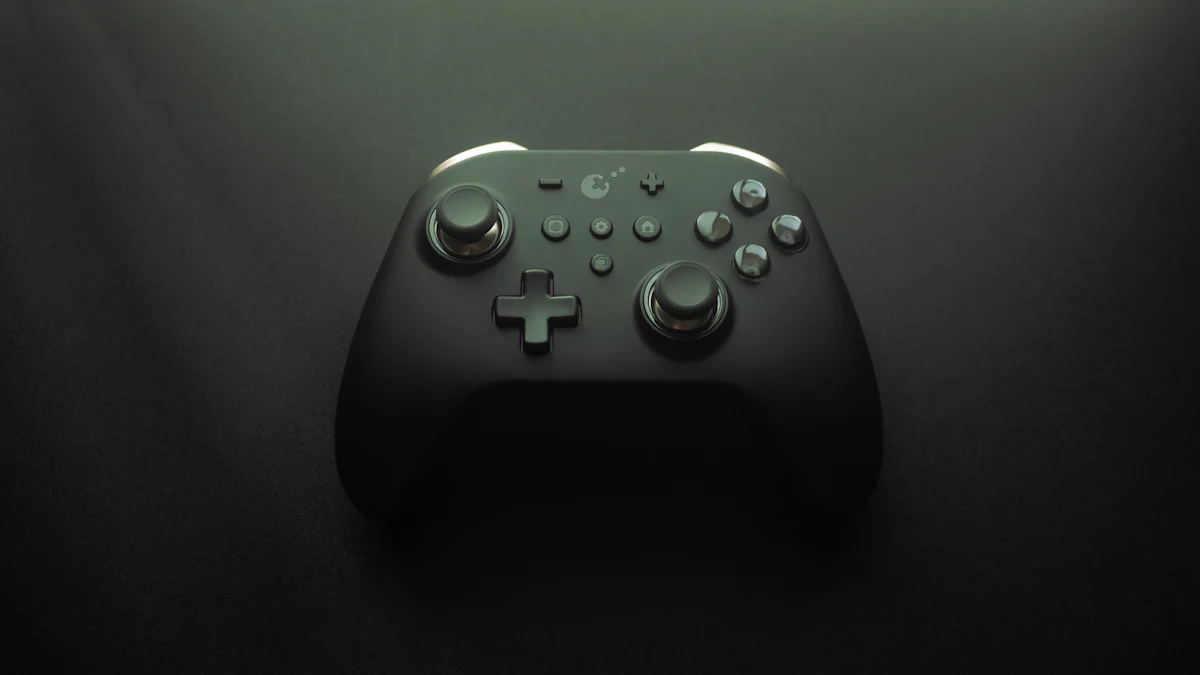
To begin, turn on your Xbox and navigate to the settings menu. You can do this by pressing the Xbox button on your controller to open the guide, then selecting “Profile & system” and choosing “Settings.”
Step 2: Adjusting the Settings
Once in the settings menu, look for the “Audio” or “Sound” options. Here, you should find a section related to mic monitoring or microphone settings. Adjust the slider or toggle to enable mic monitoring at a level that allows you to hear yourself clearly without overpowering other sounds.
Testing Your Mic Monitoring
Making Sure You Can Hear Yourself
After adjusting the settings, it’s crucial to test your mic monitoring. Join a party or start a game where you can use voice chat. Speak into your microphone and listen for your voice through the headset. Ensure that it is clear and at an appropriate volume.
Adjusting Until It’s Just Right
If you find that you’re not hearing yourself clearly enough or if there is too much background noise coming through, return to the settings menu and make further adjustments. It may take some trial and error to find the perfect balance, but once you do, you’ll be able to enjoy seamless communication while gaming on your Xbox.
Choosing the Right Headphones for Mic Monitoring
When it comes to headphones for mic monitoring, there are a few key factors to consider. The right pair can enhance your gaming experience by providing comfort, quality sound, and seamless compatibility with your Xbox.
What to Look For in Headphones
Comfort and Quality
Comfort is essential for long gaming sessions. Look for headphones with cushioned ear cups and an adjustable headband to ensure a snug yet comfortable fit. Additionally, prioritize sound quality to fully immerse yourself in the game while maintaining clear communication through mic monitoring.
Compatibility with Xbox
Ensure that the headphones you choose are compatible with your Xbox. Look for options that offer easy connectivity and seamless integration with the console’s audio settings. This compatibility will ensure that you can make the most of the mic monitoring feature without any technical hiccups.
My Top Picks
Budget-Friendly Options
For gamers on a budget, there are several affordable headphone options that deliver reliable performance. Consider exploring well-reviewed brands known for offering quality at an accessible price point. Keep an eye out for sales or promotions that could make these options even more cost-effective.
The Best for Serious Gamers
Serious gamers who prioritize top-notch audio and communication capabilities may want to invest in high-end headphones designed specifically for gaming. Look for features such as noise cancellation, surround sound, and a detachable microphone for added versatility. While these options may come with a higher price tag, they often provide exceptional performance and durability.
Tips and Tricks for Mic Monitoring with Xbox Microphone Software
Now that you have mic monitoring set up on your Xbox, it’s time to explore some tips and tricks to enhance your gaming experience even further. Fine-tuning your mic monitoring experience can make a significant difference in how you communicate with other players and immerse yourself in the game environment.
Fine-Tuning Your Experience
Adjusting for Different Games
Each game may have unique audio dynamics, requiring adjustments to your mic monitoring settings. Some games may benefit from a higher mic monitoring level to ensure clear communication, while others might require a more subtle balance. Experiment with the settings based on the specific audio characteristics of each game you play.
Dealing with Background Noise
In gaming environments, background noise can be distracting and affect the clarity of your communication. To minimize background noise interference, consider adjusting the sensitivity of your mic monitoring feature. Finding the optimal sensitivity level will help filter out unnecessary ambient sounds, allowing for clearer voice transmission.
Solving Common Problems
When You Can’t Hear Yourself
If you’re experiencing difficulty hearing yourself through mic monitoring, there are a few troubleshooting steps you can take. First, ensure that the volume levels are appropriately adjusted both on your headset and within the Xbox audio settings. Additionally, check for any physical obstructions or damage to the headset that may be affecting sound transmission.
When There’s Too Much Echo
Experiencing excessive echo can disrupt communication and diminish the overall gaming experience. To address this issue, consider adjusting the positioning of your microphone or headset to minimize reverberations. Additionally, if using external speakers alongside mic monitoring, try reducing their volume or positioning them away from the microphone to mitigate echo effects.
By fine-tuning your mic monitoring settings and addressing common challenges, you can optimize your gaming experience on Xbox while ensuring seamless communication with fellow players.