
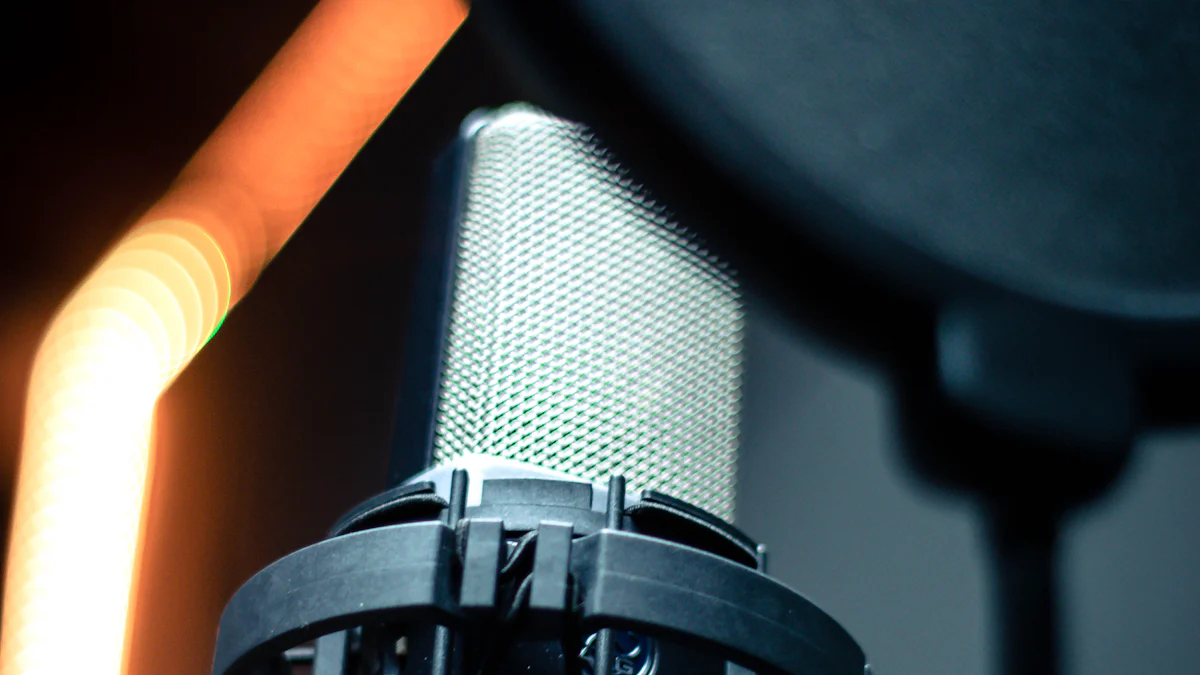
Why Use an External Mic with Your Android Phone?
Using an external mic with your Android phone can significantly enhance the audio quality of your videos and podcasts. The built-in microphone on most smartphones may not capture sound as clearly, especially in noisy environments. By connecting an external mic to your cellphone, you can achieve professional-grade audio recordings that are essential for creating engaging content.
Better Sound for Videos and Podcasts
When recording videos or podcasts, it’s crucial to have clear and high-quality audio. An external mic helps in capturing crisp and detailed sound, making your content more professional and enjoyable for your audience to listen to.
Types of External Mics You Can Use
There are various types of external mics available for use with your Android phone, each serving different purposes. From lavalier mics for hands-free recording to shotgun mics for directional sound capture, you have options to choose from based on your specific recording needs.
Choosing the Right External Mic for Your Android Phone
When it comes to selecting an external microphone for your Android phone, it’s essential to consider the different types available and their compatibility with your device.
Types of Microphones for Different Needs
Lavalier Mics: These small microphones are ideal for hands-free recording, making them perfect for vlogging or interviews where you need freedom of movement while capturing clear audio.
Shotgun Mics: If you require directional sound capture, such as when recording outdoor scenes or specific sound sources, a shotgun mic is the best choice. It focuses on the audio in front of the camera, reducing background noise.
Handheld Mics: When conducting interviews or live recordings, handheld mics offer versatility and ease of use. They are suitable for capturing clear audio in various settings.
Compatibility with Your Phone
For Android Phones in General: Most external microphones are compatible with Android phones, ensuring that you can easily connect and use them without any issues. However, it’s always recommended to check the microphone’s specifications for compatibility with your specific device model.
For Samsung Phones Specifically: Samsung phones often have their own specifications for external microphone compatibility. Some models may require specific adapters or connectors to ensure seamless connectivity and optimal performance.
Step-by-Step Guide to Connecting an External Mic to Your Android Phone
Now that you have chosen the right external microphone for your Android phone, it’s time to connect it for high-quality audio recording. Follow these simple steps to ensure a seamless connection and setup.
What You Need Before You Start
Before you begin, make sure you have the following items ready:
Your Android phone with a fully charged battery.
The compatible external mic for your device.
If needed, an adapter or connector based on the type of external mic and your phone’s port.
Connecting the Microphone
Using the Headphone Jack
Plug the external mic into the headphone jack of your Android phone. Ensure that it is securely connected to avoid any audio disruptions during recording.
Once connected, your phone should automatically detect the external microphone and configure its settings for use.
Using the Type-C Port
For devices with a Type-C port, connect the external microphone using a compatible Type-C adapter or connector.
Ensure that the connection is secure, allowing for uninterrupted audio input from the external mic.
Setting Up Your Phone to Use the External Mic
After connecting the external mic, access your phone’s settings to confirm that it recognizes and prioritizes the connected microphone for audio input. Navigate to the sound or audio settings on your device and select the connected microphone as the default audio input source.
By following these steps, you can seamlessly connect an external microphone to your Android phone, ensuring optimal audio quality for your recordings and podcasts.
Tips for Using an External Mic with Your Android Phone
Best Apps for Recording with an External Mic
When using an external microphone with your Android phone, choosing the right recording app can further enhance your audio recording experience. Look for apps that offer advanced audio settings, noise reduction features, and compatibility with external microphones. Some popular recording apps include “Audio Recorder,” “Easy Voice Recorder,” and “RecForge II.” These apps provide a user-friendly interface and customizable settings to optimize the use of your external mic for high-quality recordings.
Positioning Your Mic for the Best Sound
Proper positioning of your external microphone is crucial for capturing the best sound quality. When recording, ensure that the mic is positioned close to the sound source while maintaining a consistent distance to avoid distortion. For lavalier mics, clip them near the speaker’s collar for clear voice capture. Shotgun mics should be aimed towards the audio source, while handheld mics require a firm grip to minimize handling noise. Experiment with different positions to find the optimal placement for achieving professional-grade audio recordings.
By utilizing these tips, you can maximize the potential of your external microphone when recording with your Android phone.
Troubleshooting Common Issues
When Your Phone Doesn’t Recognize the Microphone
If your Android phone fails to recognize the connected external microphone, there are a few troubleshooting steps you can take. First, ensure that the microphone is securely plugged in and compatible with your device. If using an adapter, verify that it is functioning correctly. Additionally, check for any debris or dust in the headphone jack or Type-C port that may be obstructing the connection. Restarting your phone and reinserting the microphone can also help establish recognition.
If the issue persists, consider testing the external microphone on another device to determine if it’s functioning properly. Contact the manufacturer for support or consider seeking a replacement if the problem persists.
Improving Poor Sound Quality
When experiencing poor sound quality with your external microphone, start by checking its positioning and distance from the sound source. Adjusting the mic’s placement and experimenting with different recording environments can significantly improve audio clarity. Additionally, consider using a windscreen or pop filter to minimize unwanted noise interference during outdoor recordings. If using an app for recording, explore its audio settings to adjust levels and reduce background noise for enhanced sound quality.
By addressing these common issues, you can ensure seamless connectivity and optimal sound quality when using an external microphone with your Android phone.